
The Booking.com extranet is a useful tool for property owners. It helps you manage your listings, communicate with guests, handle payments, and also access support from Booking.com. In faft it makes hosting easier and more profitable.
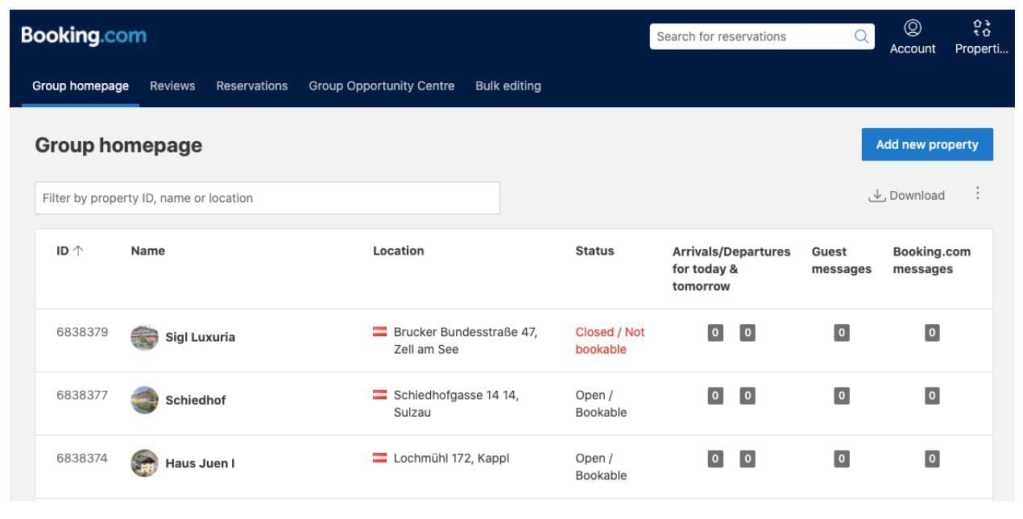
What is the Booking.com Extranet?
After you register your property and get approved by Booking.com, you will receive an email with your login details. In fact these details will allow you to access the platform’s dashboard for property owners, called the extranet. Through the extranet, you can manage your listings and also perform various tasks related to your property.
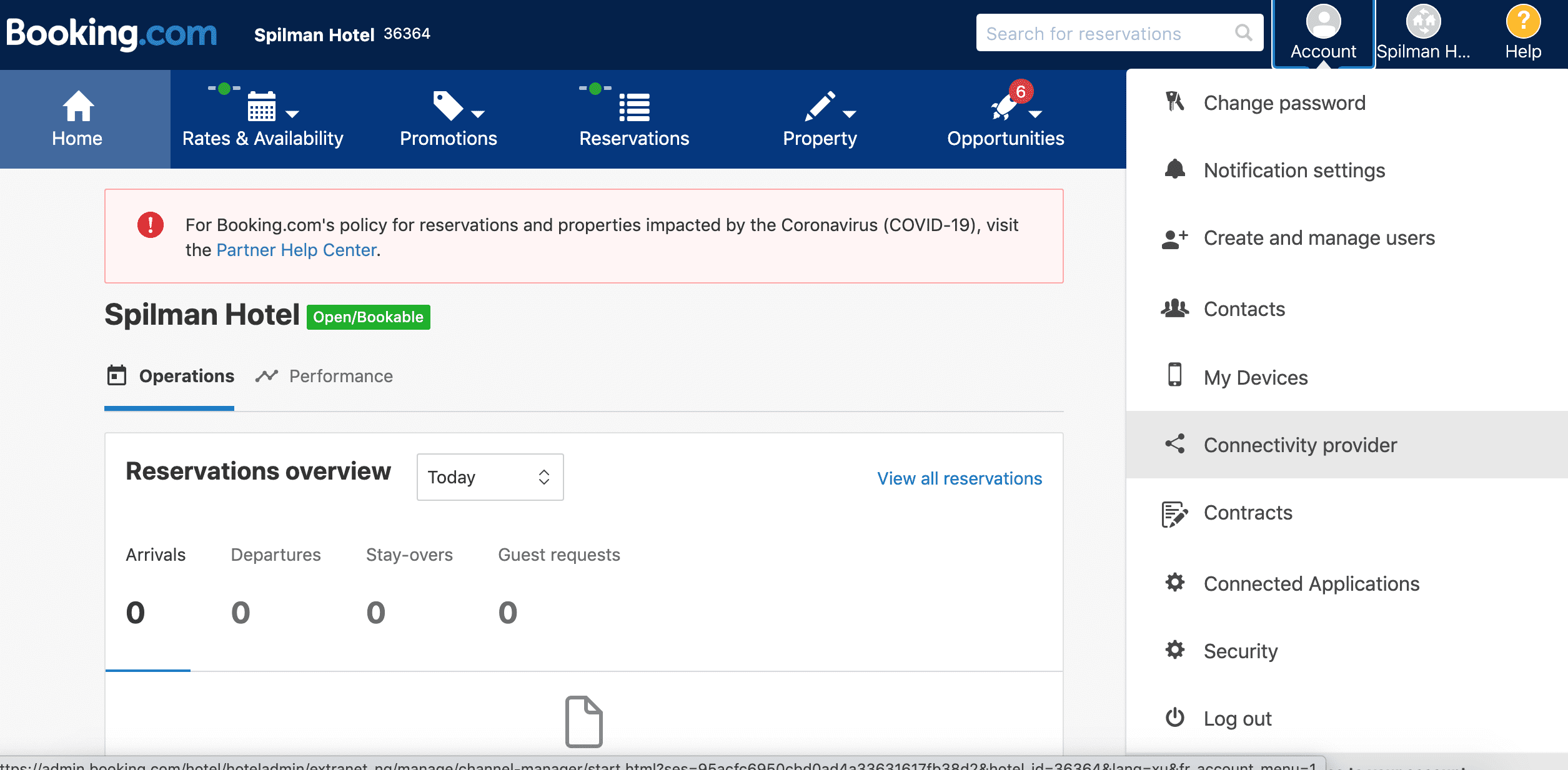
- Update or change information and details about your property
- Check upcoming reservations or make adjustments to the availability calendar. If you’re connected to Lodgify, you can make all your changes from your Lodgify account and it’ll sync automatically to Booking.com.
- Review rental rates for available units
- Confirm or update payment information
- Read through Booking.com’s tips and recommendations to boost your properties performance on the Opportunities tab
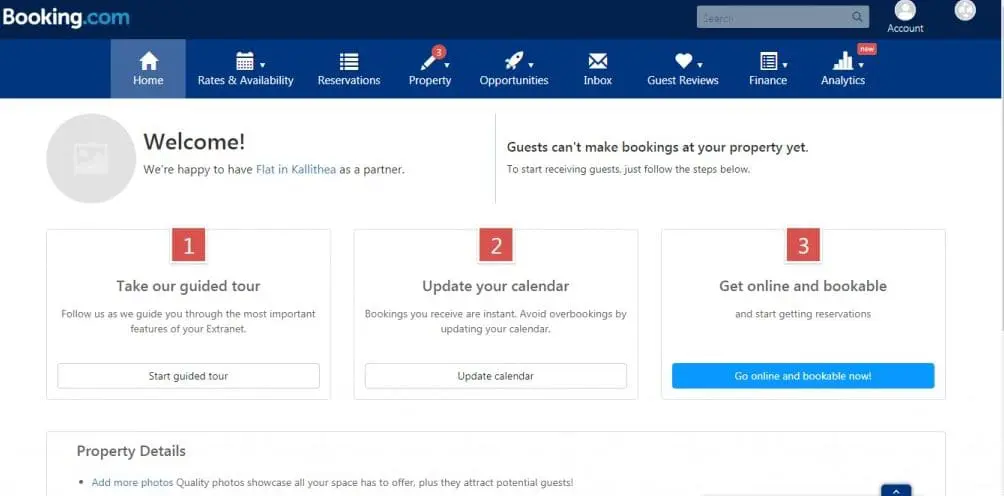
Make sure to keep your login credentials for the extranet in a safe and easy-to-remember place.
Booking.com Owner Login
To log in to your Booking.com account, follow these steps:

- Step 1: Enter the admin.booking.com URL in your internet browser.
- Step 2: Once there, enter your username and password when prompted.
- Step 3: On your first visit, you will also be asked to select your preferred language. This way you can set your language preferences for all future login attempts.
- Step 4: Your first login will also require verification of your identity. A six-digit code will be sent to you via text message, phone call, or on the Pulse app, which is the app designed by Booking.com to help manage your listings (we’ll return to this amazing resource later on). Once you receive that code, enter it in the appropriate space on the Booking.com page.
How to Recover Your Booking.com Password
If you can’t remember your password for Booking.com’s extranet, don’t worry! Just click on the “Having trouble signing in?” link on the login page. Then select “Forgot your password?” and follow the instructions to choose a new password.
If you can’t login to the platform, Booking.com will temporarily restrict your access after five unsuccessful attempts. As a result to reset your password, click on “Forgot your password?” and follow the email instructions.
How to Deactivate your Booking.com Listing
If you need to temporarily close your Booking.com listing for renovations or any other reason, you can simply mark it as unavailable. In fact you should change on the availability calendar in your extranet dashboard.
If you have a unit that is not rented now or in the future, you can simply close the room for a specific time range. This will deactivate your listing. When you want to reactivate it, you can update availability.
To temporarily close a rental listing, you should make sure there are no upcoming reservations. Because if there are reservations, you cannot deactivate the listing. Instead, you may consider exchanging the property with another one of similar quality and location.
How to Remove Your Booking.com Listing
To remove a listing on Booking.com, send a message to their support team through the extranet and request to deactivate your listing. So they will respond promptly to assist you with the process. Additionally you can delete room types without deleting the entire listing on Booking.com.