

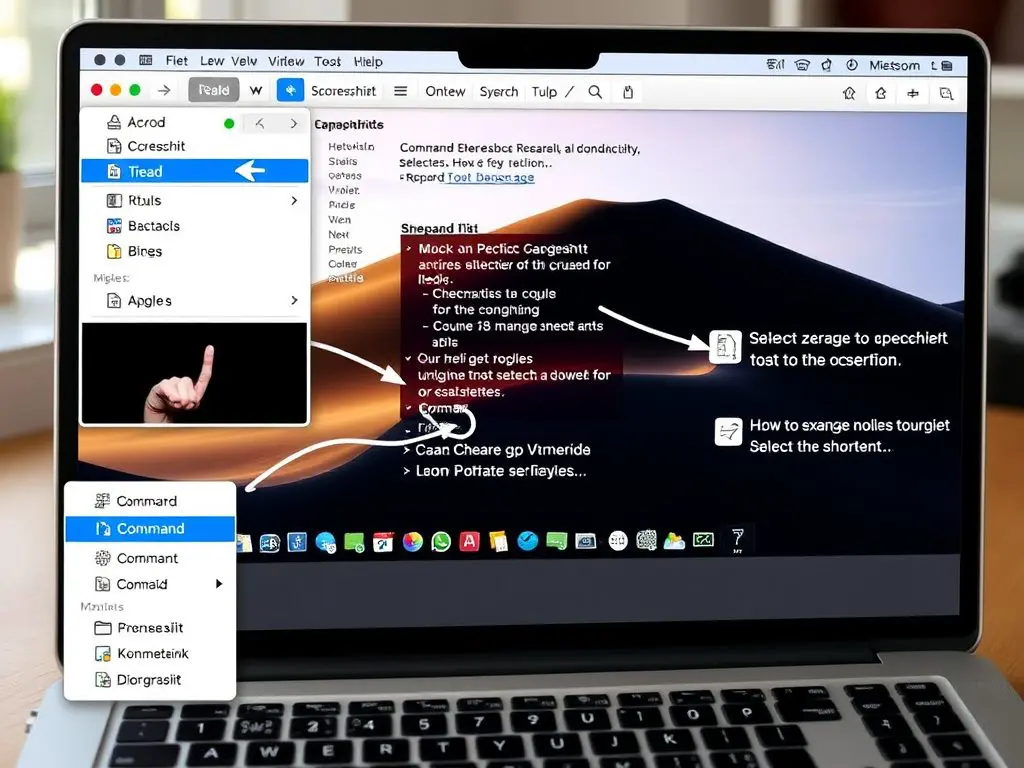
Taking screenshots on your Mac doesn’t have to be complicated. This guide covers all the essential techniques on how to screen capture on Mac quickly and efficiently. Screenshots are valuable for a variety of reasons.

They help when you’re sharing information, troubleshooting issues, or preserving important visuals. Knowing how to effectively capture your screen can enhance your productivity.
Basic Techniques for How to Screen Capture on Mac {#shortcuts}
Taking screenshots on your Mac is straightforward once you know the right keyboard combinations for screen capture:
✨ Essential Commands for How to Screen Capture Mac:
- Full Screen: Command (⌘) + Shift + 3
- Selected Area: Command (⌘) + Shift + 4
- Window Capture: Command (⌘) + Shift + 4, then Space
Advanced Methods for Effective Screen Capture on Mac {#advanced}

For more control over your screenshots, use these professional techniques on how to screen capture effectively:
1. Accessing the Screenshot Toolbar
Press Command (⌘) + Shift + 5 to access:
- Screen recording options
- Capture preferences
- Timer settings
- Save location choices
2. Using the Preview Method for Capturing Screenshots
A lesser-known but powerful option:
- Open Preview
- Click File > Take Screenshot
- Choose your capture type
Pro Tips for Perfect Screenshots on Your Mac {#tips}
💡 Expert Recommendations for How to Screen Capture on Mac:
- Use the Control key to copy to the clipboard
- Enable the floating thumbnail for quick edits
- Customize save locations for efficiency
- Add annotations instantly to improve clarity
- Set custom keyboard shortcuts for ease of use
Troubleshooting Common Screen Capture Issues on Mac {#troubleshooting}
Having troubles while taking screenshots? Here’s what to check:
- Storage permissions: Ensure you have sufficient disk space.
- Keyboard settings: Verify your shortcuts in System Preferences > Keyboard > Shortcuts.
- Save location access: Confirm you have access to your intended save locations.
- System preferences: Ensure your macOS is updated for optimal performance.
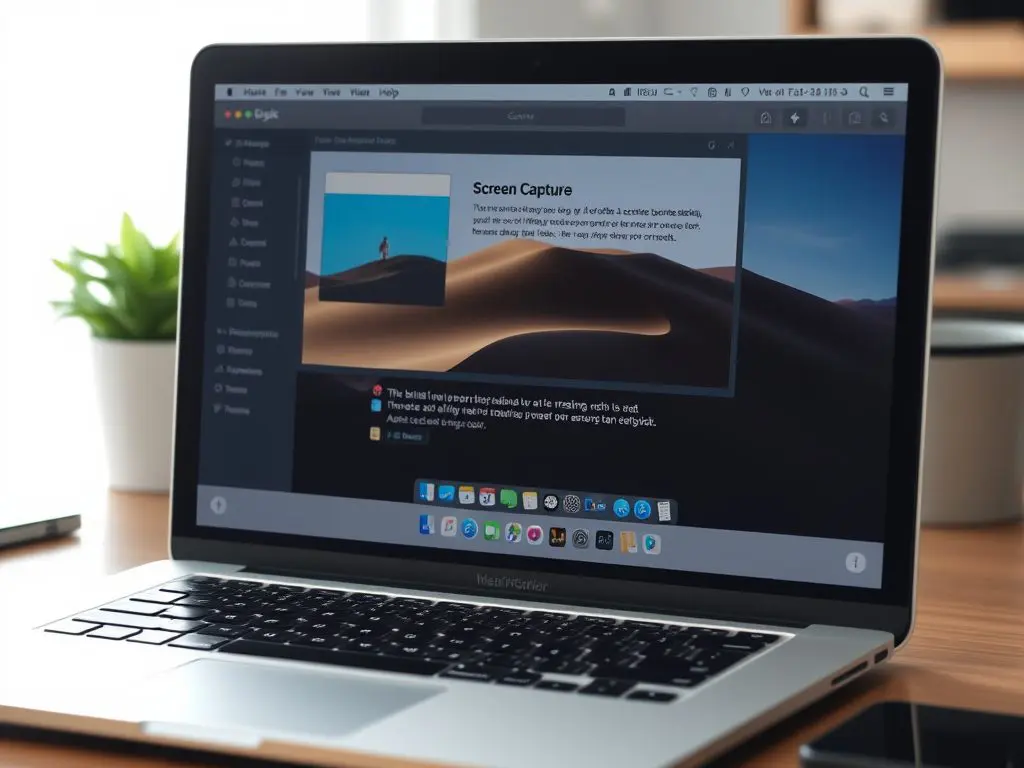
Troubleshooting Specific Errors
If you’re facing specific errors like screenshots not saving or not capturing what you see, consider these solutions:
- Screenshots not saving? Check storage permissions and verify your save location.
- Keyboard shortcuts not working? Check that the shortcuts are correctly set in the System Preferences.
- Need higher quality? Adjust format settings in the Screenshot app by selecting different image formats such as PNG, JPG, or TIFF.
Frequently Asked Questions on How to Screen Capture Mac {#faqs}
Q: Where do Mac screenshots save by default?
A: They automatically save to your Desktop unless changed in preferences.
Q: Can I change the screenshot file format?
A: Yes, you can use the Terminal or Screenshot app preferences to switch between PNG, JPG, or other formats.
Q: How do I capture a specific window?
A: Press Command + Shift + 4, then Space, and click the window you want to capture.
Recommended Tools for Enhanced Screenshot Workflow
To enhance your screenshot experience, consider these Mac-compatible tools:
- Built-in Preview app
- Markup tools
- Quick Look features
- iCloud sync for easy access across devices
Ready to become a Mac screenshot pro? Start with the basic shortcuts and gradually explore advanced features. Consistent practice of each method will help you find what works best for your workflow.
Did you find this guide helpful? Share it with fellow Mac users! We’d love to hear your personal experiences with how to screen capture on Mac. Have questions about specific screenshot features? Drop them in the comments below. 👇
#MacTips #Productivity #TechGuide #AppleTutorial #MacOS2025 #ScreenshotGuide #ScreenCaptureTips
People Also Read
- WordPress Plugin Popup: The Ultimate Guide
- Mastering Property Management for Maximum Occupancy
- How to get started with Airbnb without owning property
- Step-by-Step Guide to Edit a Review






Leave a Reply