

Learn how to access Mondosol’s educational platform on your mobile device. Discover mobile browser compatibility, features, optimization tips, and troubleshooting for seamless learning on the go.
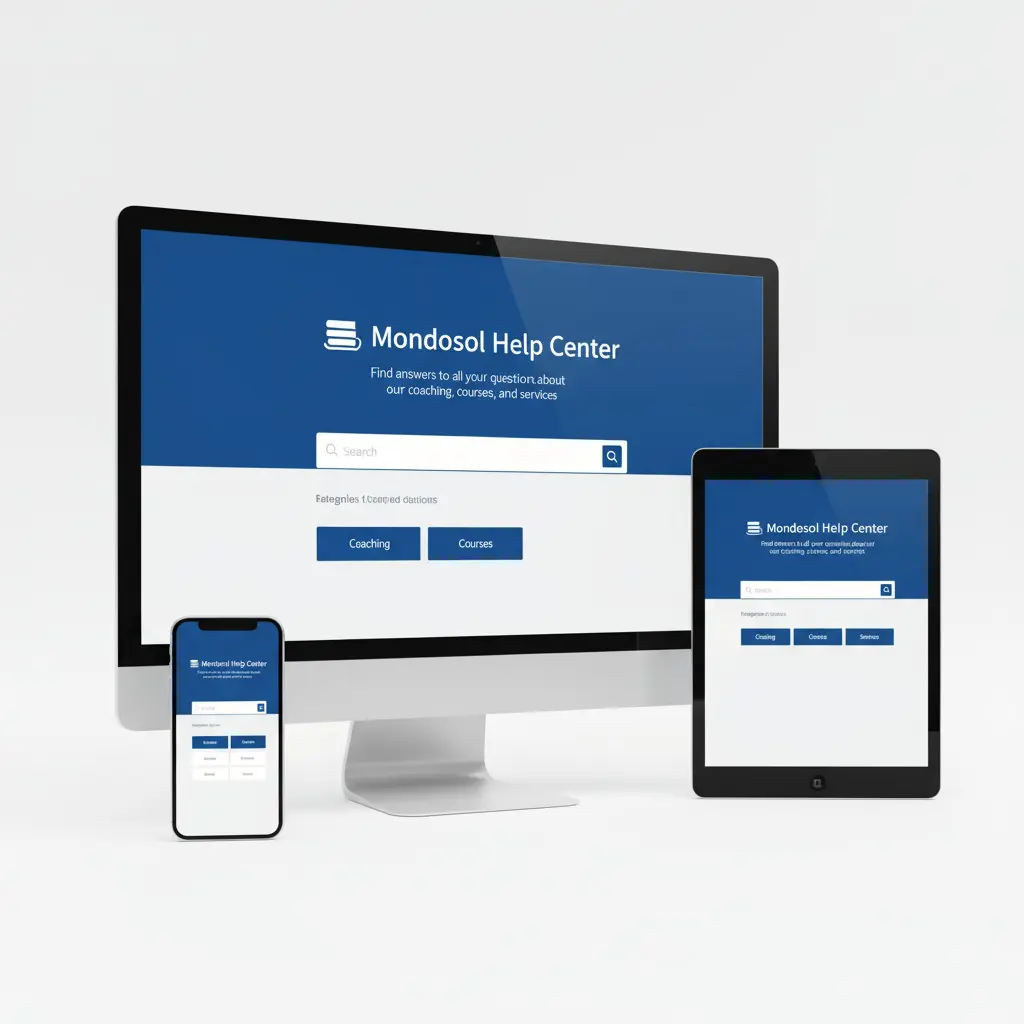
Accessing Mondosol on mobile devices is straightforward and optimized for learners on the go. Whether you’re using a smartphone or tablet, our platform delivers a seamless mobile learning experience. This ensures that Mondosol mobile access is convenient for every user.
📱 How to Access Mondosol Mobile
Step 1: Open Your Mobile Browser Launch your preferred mobile browser—Safari (iOS), Chrome (Android/iOS), Firefox, or Microsoft Edge. All modern browsers support Mondosol’s responsive design for optimal mobile access.
Step 2: Visit Mondosol.com Type mondosol.com into your browser’s address bar. The website automatically adapts to your screen size, providing an optimized mobile interface for easy access.
Step 3: Navigate and Learn Browse courses, coaching programs, and educational content directly from your mobile device. With Mondosol mobile access, all learning materials are at your fingertips.
✨ Mobile Features Available
Our mobile platform offers comprehensive functionality:
- Course Access: View all educational courses and learning materials with Mondosol mobile features.
- Coaching Booking: Schedule sessions via our calendar system using Mondosol mobile access.
- Content Browsing: Read blog posts, FAQs, and travel guides, all accessible on your mobile.
- Account Management: Update profile settings and preferences, even on the go.
- Support Access: Contact our support team anytime with mobile connectivity.
🌐 Supported Mobile Devices
Mondosol works on:
- iOS Devices: iPhone, iPad (iOS 12+)
- Android Devices: Samsung, Google Pixel, Huawei (Android 8+), seamlessly supporting Mondosol mobile
- Tablets: iPad, Samsung Galaxy Tab, Amazon Fire
💡 Mobile Optimization Tips
Add to Home Screen: Create a shortcut for Mondosol mobile access. On iOS, tap the Share icon and select “Add to Home Screen.” On Android, tap the menu and choose “Add to Home Screen.”
Enable Notifications: Stay updated on course releases and coaching availability by enabling browser notifications through Mondosol mobile.
Use Landscape Mode: For video content and detailed course materials, rotate your device to landscape orientation for better visibility.
Stable Connection: Ensure a reliable Wi-Fi or mobile data connection for uninterrupted learning with Mondosol.
🔧 Troubleshooting Mobile Access
If you experience issues with Mondosol mobile access:
- Clear your browser cache and cookies
- Update your browser to the latest version
- Check your internet connection
- Try a different browser
- Contact support for technical assistance
📚 External Resources
Learn more about mobile learning best practices:
- Mobile Learning Guide – edX
- Responsive Design Basics – Google Web.dev
Need Help? Our team is available 24/7. Visit our FAQ page or contact us directly.






Leave a Reply