


Looking to check who’s subscribed to your YouTube channel? Whether you’re on desktop or mobile, here’s everything you need to know about viewing your YouTube subscribers. Knowing how to look at your subscribers on YouTube can help identify your audience and ultimately grow your channel.
Why Tracking Subscribers Matters
Tracking your subscribers is crucial for understanding your audience. It helps you gauge the effectiveness of your content and informs your overall growth strategy. Monitoring subscriber changes can reveal what resonates most with your viewers, enabling you to produce targeted content that drives engagement.
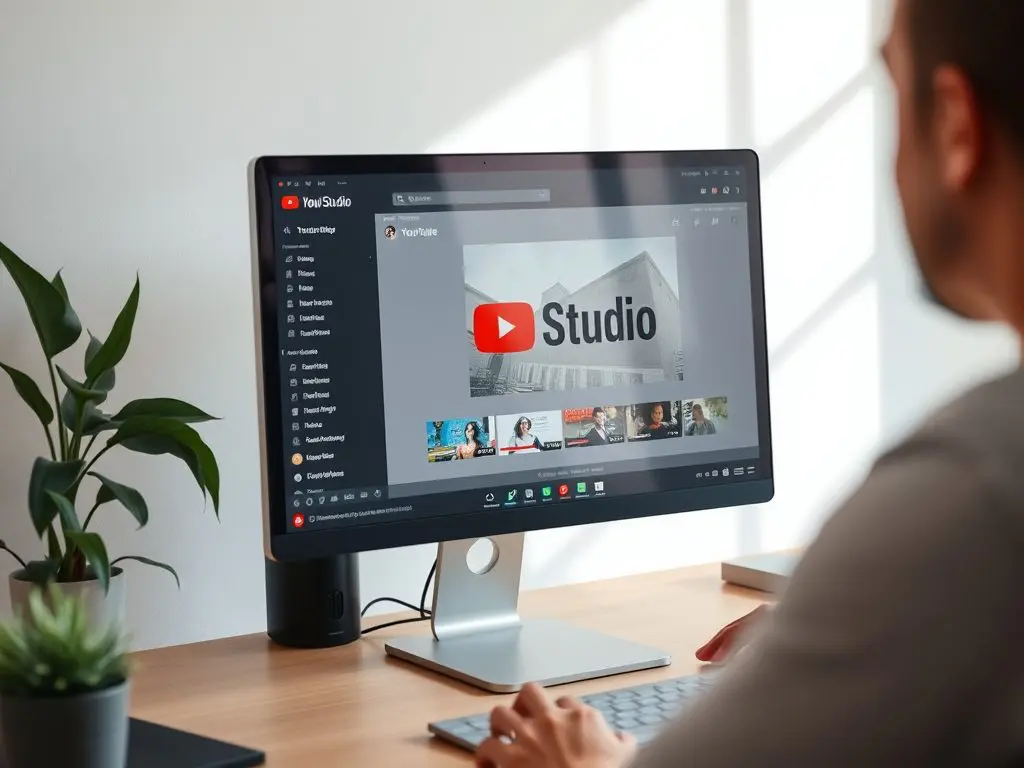
Desktop Method: Using YouTube Studio
- Sign in to your YouTube account to check your subscriber list.
- Click on YouTube Studio.
- On the Dashboard, find the “Recent subscribers” card.
- Click “See all” to expand and view your subscriber list.
- Sort subscribers by date or subscriber count.
Mobile Method: Using the YouTube App
- Open the YouTube mobile app to see your subscribers.
- Tap your profile icon in the top-right corner.
- Select “Your channel.”
- View your subscriber count under your channel name.
- Open the YouTube Studio app for detailed subscriber analytics.
Checking Subscriber Analytics
Want deeper insights into your subscriber growth? Here’s how to look at your subscribers on YouTube in detail:
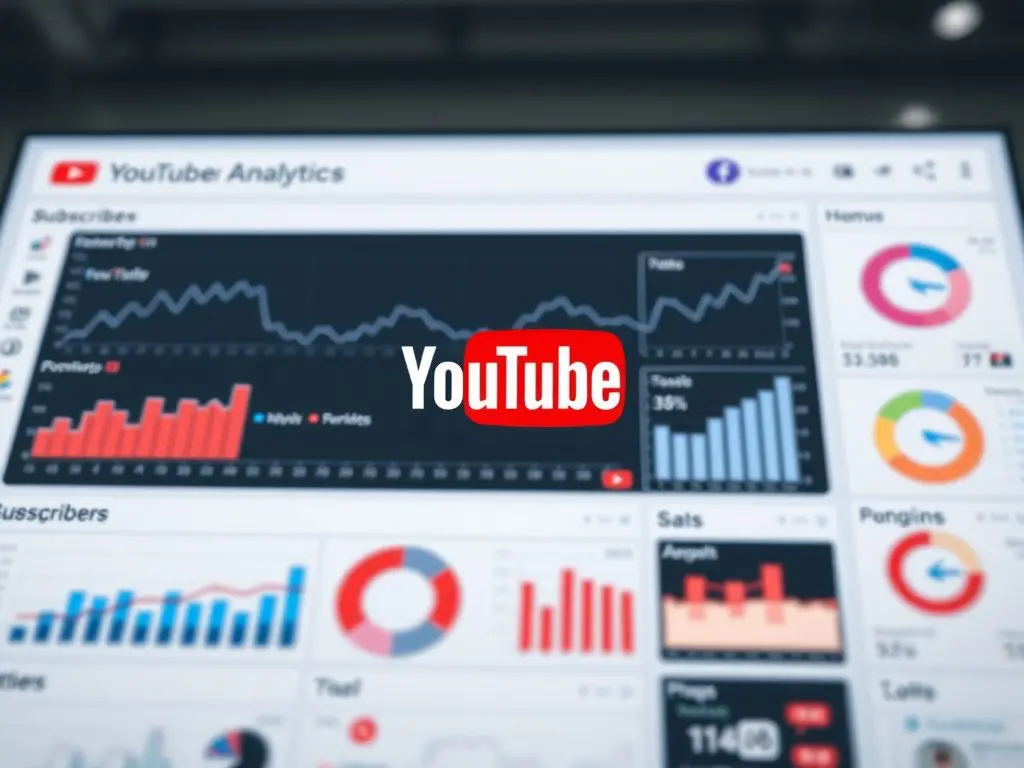
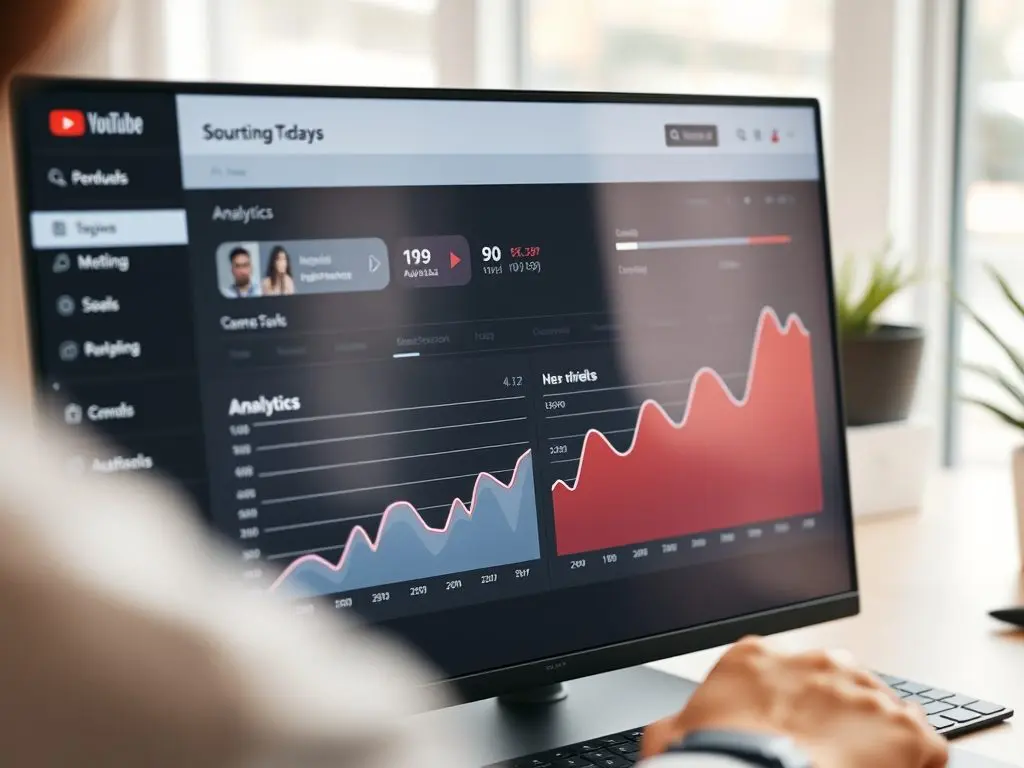
- Go to YouTube Studio Analytics to find out more.
- Click on the “Subscribers” tab.
- View detailed metrics about:
- Subscription sources
- Subscriber growth over time
- Geographic distribution
- Engagement patterns
Pro Tips for Tracking Subscribers
- Check your real-time subscriber count in YouTube Studio to get precise updates.
- Allow email notifications for new subscribers.
- Review subscriber sources to improve your growth strategy.
- Observe which videos bring in the most subscribers.

My Experience with Subscriber Growth
In my experience, the key to increasing subscriber count lies in engaging content. When I focused on topics that resonated with my audience, I saw a significant boost in subscriptions. The insights gained from analyzing subscriber data truly transformed my content strategy.
Important Notes
- You can only see subscribers who have made their subscriptions public.
- Recent subscriber data is limited to the last 28 days.
- Subscriber counts may have slight delays in updating.
- Mobile app features might vary by device and OS version.
Frequently Asked Questions (FAQ)
Q: Can I see all my subscribers?
A: You can only see subscribers who have made their subscriptions public.
Q: How often is my subscriber count updated?
A: Subscriber counts have slight delays in updating.
Q: Are there limits to the subscriber data I can access?
A: Yes, recent subscriber data is limited to the last 28 days.
Next Steps
Now that you know how to track your subscribers, focus on growing your channel using these techniques to engage your audience:
- Creating engaging content that encourages subscriptions.
- Adding clear calls-to-action in your videos.
- Engaging with your community regularly.
- Analyzing which content drives the most subscriptions.
Need help growing your YouTube channel? Check out our related guides on content strategy and audience engagement.
Outbound Links:
- YouTube Studio Help
- Creating Engaging YouTube Content
- YouTube Growth Strategies
- Understanding YouTube Analytics
🎯 Quick Tip: Check your subscriber analytics weekly. This helps you understand your channel’s growth patterns. Adjust your content strategy suitably. Learning how to look at your subscribers on YouTube can help you refine these strategies.






Leave a Reply